

Anyone who has spent time with Windows has likely come across System Restore, the tool that reverses certain system changes when something goes wrong. Windows 11 adds a newer option called Point-in-Time Restore, which takes that idea further.
Besides system files, settings, and apps, it also returns your personal files to how they were at an earlier point. That raises an obvious question: can it bring back deleted files? Yes, but only if the file was there when the restore point was created. Even then, the only way to get it back is to roll the whole PC back, which also wipes out everything you’ve done since that point.
Understanding Windows Point-In-Restore
Point-in-Time Restore is a recovery tool built into Windows 11 that takes your PC back to exactly how it was at a previous moment. Microsoft rolled it out to everyone in June 2026, covering Windows 11 version 24H2 and newer on the Home, Pro, and Enterprise editions.
It’s meant for situations where Windows itself stops working properly, not for retrieving individual files. A buggy update that destabilizes your system, a bad driver, damaged apps, or a settings tweak that backfired are the typical cases. Rather than losing hours to troubleshooting or a full reset, you can revert the entire system to a recent restore point, a process Microsoft says finishes in just a few minutes.
Whether it’s already active on your PC depends on your configuration:
- Enabled by default on Windows 11 Home, and on Pro devices not managed by an organization, provided the Windows drive has at least 200 GB of space.
- Disabled by default on Enterprise and Education devices, and on organization-managed Pro devices, until Windows 11 version 26H2.
- Disabled by default on drives smaller than 200 GB, though you can switch it on yourself.
You can check its status under Settings > System > Recovery > Point-in-time restore. Do this sooner rather than later, because the feature can only revert to restore points it has already created. If it was switched off, there’s nothing to restore from.
How Point-in-Time Restore Rolls Back Your PC
Point-in-Time Restore relies on regular snapshots of your PC, known as restore points. Each one captures your system exactly as it was at that moment, including Windows, installed apps, settings, and the files on your Windows drive. Windows builds these snapshots with Volume Shadow Copy Service (VSS), the same technology System Restore uses, and keeps them on the PC itself.
Out of the box, the feature follows a fixed routine:
- Windows creates a new restore point about once every 24 hours, and you can’t trigger one yourself. Enterprise devices can shorten that gap to as little as 4 hours.
- Every restore point is automatically removed after 72 hours at most, with the oldest going first.
- Restore points can take up to 2% of your disk space, and Windows may clear them earlier if storage runs short.
So on a typical home PC, you’ll usually have two or three restore points to choose from, all dating from the past three days.
How to Restore Your PC to an Earlier Point?
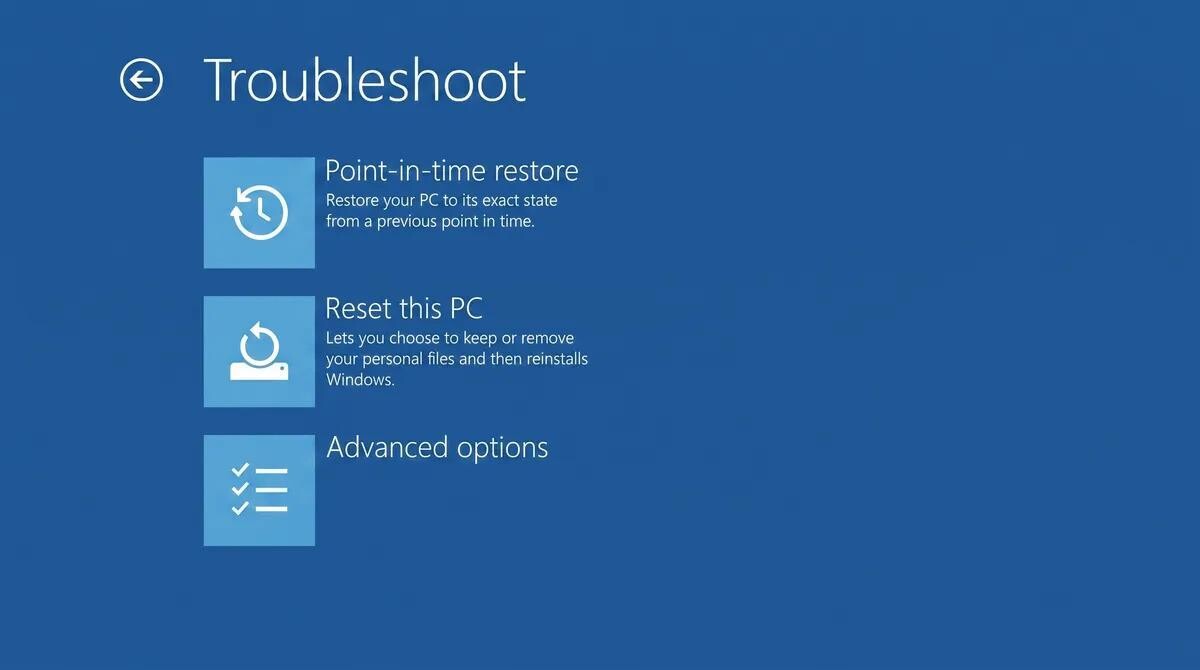
A restore can’t be started from the Windows desktop. It runs through the Windows Recovery Environment (WinRE), which also loads on its own if Windows fails to start several times in a row.
- Open Settings > System > Recovery, then click Restart now.
- Choose Troubleshoot > Point-in-time restore.
- If prompted, type in your BitLocker recovery key.
- Select a restore point by its date and time, then click Restore.
Once the process completes, your PC reboots into Windows exactly as it was at the restore point you chose.
Does Point-in-Time Restore Work for Deleted Files?
Yes, but only by rolling back your whole PC. Point-in-Time Restore can’t bring back a single file. It returns the entire system to an earlier restore point, so a deleted file reappears only if it was there at that moment. Three conditions have to be met:
- The file must have been captured in a restore point. Anything created and deleted between two restore points was never saved.
- The restore point must still exist. They’re kept for up to 72 hours, and sometimes less if disk space runs low.
- The file must have been on your Windows drive. Other drives and external storage aren’t included in the restore.
The trade-off is that everything changed after the restore point is lost, including files, apps, settings, and saved passwords. Say your last restore point was created on Monday night. A file you deleted on Tuesday will return, but the rest of your PC also goes back to how it looked on Monday night, wiping out all of Tuesday’s work. A file that was both created and deleted on Tuesday won’t come back at all.
Restore points also can’t be browsed or opened, so you can’t pull out just the one file you need.
Put simply, Point-in-Time Restore is only useful if you spot the missing file within a day or two and can afford to lose your recent work. It won’t help with files deleted further back, files kept on drives other than the Windows drive, or PCs where the feature was switched off.
Try These First Before Rolling Back
Rolling back your whole PC is a big step, so see if the file can be recovered more easily first:
- Recycle Bin. Normally deleted files land here first. Locate the file, right-click it, and choose Restore.
- OneDrive recycle bin. If the file sat in a OneDrive folder, deleting it on your PC removes it from OneDrive too. Sign in to OneDrive on the web and look in its recycle bin.
- File History. If you’ve set it up, search for “Restore your files with File History” in the Start menu, browse to the file, and restore it.
If the file isn’t in any of these, Point-in-Time Restore isn’t your only option.
Point-in-Time Restore Not Working for You? Recover Deleted Files with Stellar Data Recovery
Point-in-Time Restore helps only when a recent restore point happens to include your file. You can’t create restore points yourself, and they’re stored on the same drive as your data, so a drive failure takes them out too.
Stellar Data Recovery takes a different approach. It doesn’t depend on restore points at all. Instead, it scans your drive directly for deleted data and lets you pick out only the files you want, with no need to roll back your PC. That lets it cover the cases Point-in-Time Restore can’t.
Follow these steps to recover your lost or deleted files with Stellar Data Recovery:
- Download and install Stellar Data Recovery on a different drive from the one with your lost files.
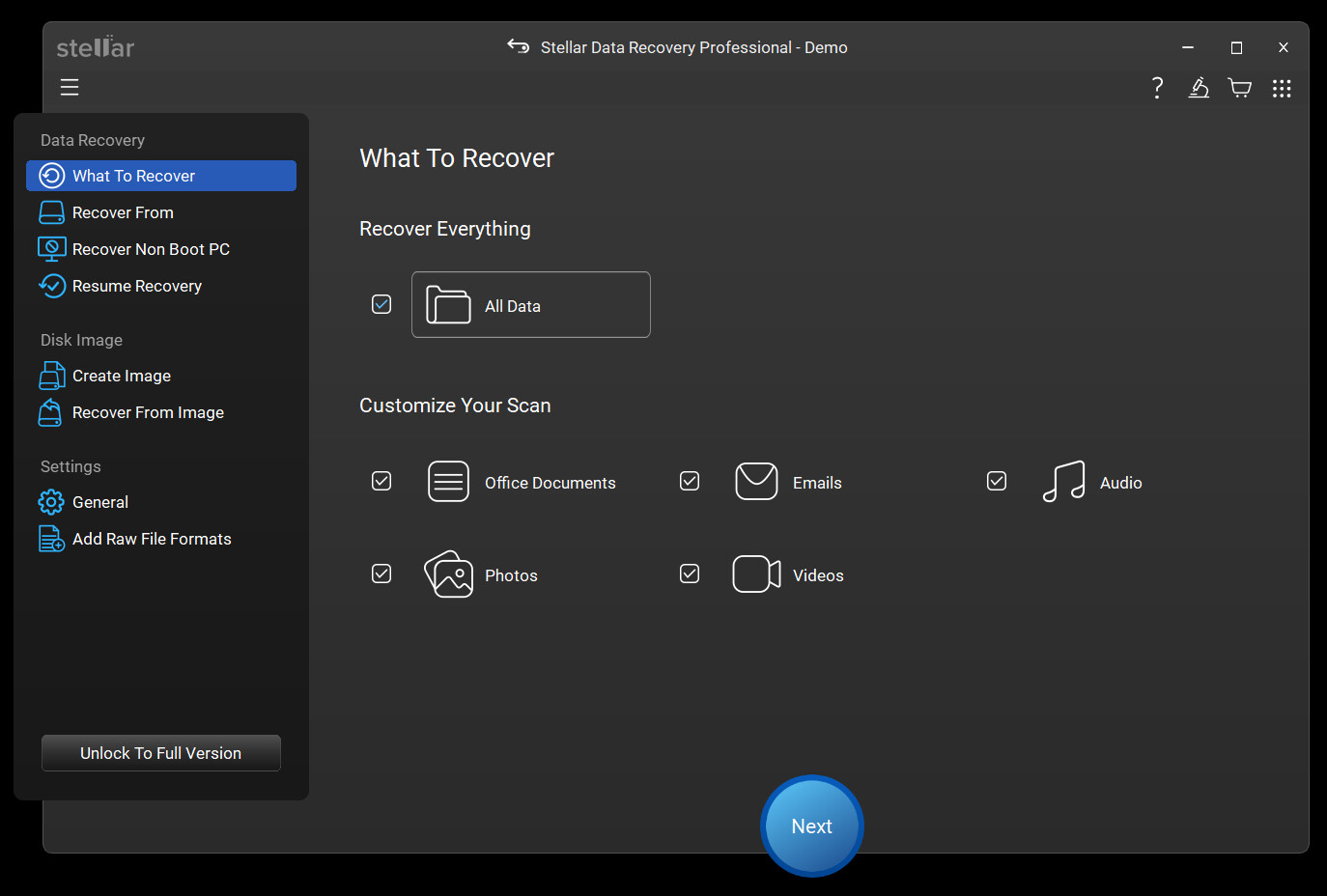
- Select the types of files you want to recover, then click Next.
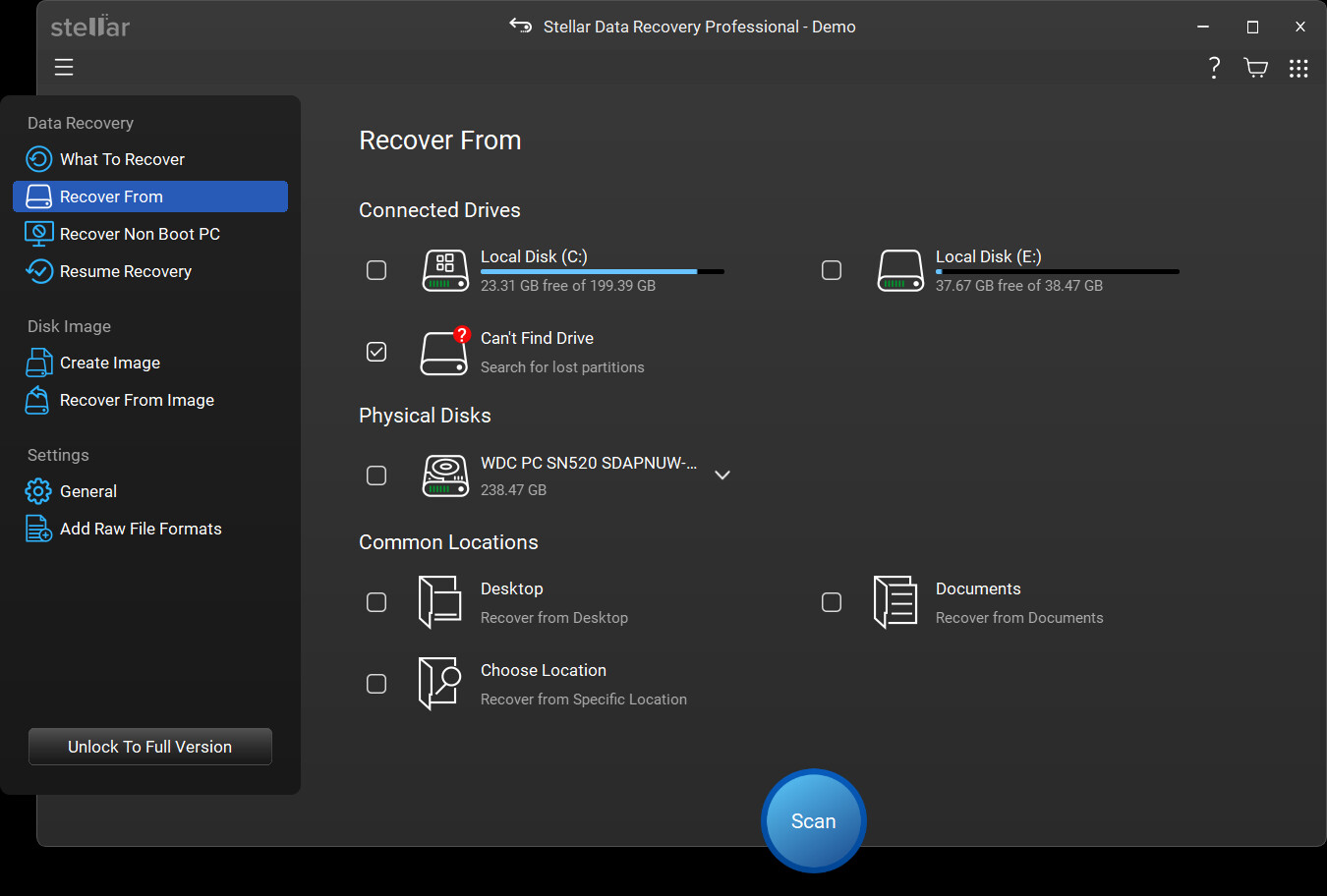
- Select the drive or folder where the files were saved, then click Scan.
- If your files don’t appear, run a Deep Scan.
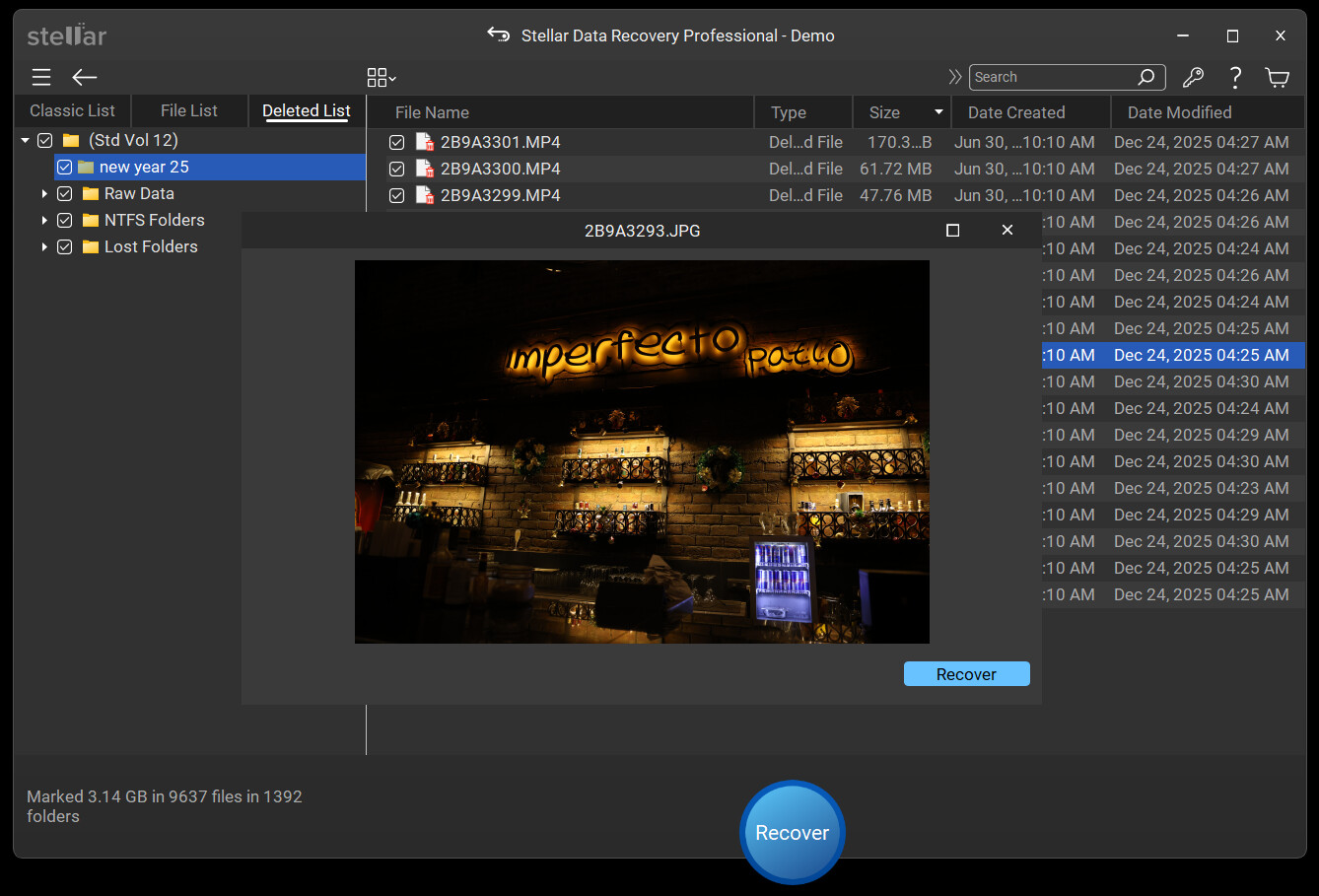
- Preview the files, select the ones you need, and click Recover. Save them to a different drive.
Bottom Line
Point-in-Time Restore is a handy safety net when Windows breaks, but recovering files was never its purpose. A deleted file comes back only if a recent restore point captured it, only if it was on your Windows drive, and only if you can live with losing everything you’ve done since that restore point.
For most deleted files, a dedicated recovery tool is the smarter choice. Stellar data recovery software scans your drive directly and brings back just the files you need from any drive, with no restore point required and your recent work left intact. And if you do need to roll back your PC, recover your files first.