
ScanPST.exe, also known as the Inbox Repair Tool, is a built-in utility included with Classic Outlook to repair corrupted PST files. This utility is by default located in the MS Office installation directory. However, sometimes, you face difficulty locating the ScanPST on your system when using Microsoft 365 (Outlook 365) or New Outlook. This happens if you’re checking the incorrect installation folder as the exact location of the utility depends on the Outlook version installed.
Moreover, ScanPST is not included if you download Outlook from the Microsoft Store as it provides New Outlook for Windows rather than Classic Outlook. In this guide, we will explain why you can’t find ScanPST, how to locate it, and how to repair a corrupted PST file using a PST repair solution if ScanPST is unavailable.
When to Use ScanPST Utility?
ScanPST helps you diagnose and fix errors in corrupted Outlook data file. You can use this utility in the following situations:
- Outlook fails to load the mailbox.
- Outlook reports that PST file cannot be opened.
- Certain folders or items in the mailbox are inaccessible.
- Outlook shows an error that a set of folders cannot be opened.
- Outlook crashing while accessing data.
Why can’t you Find ScanPST?
1. Checking the Wrong Microsoft Office/Outlook Installation Folder
The location of ScanPST depends on the Outlook/Office version installed on your system. Default locations for Classic Outlook are:
C:\Program Files\Microsoft Office\root\Office16

or
C:\Program Files (x86)\Microsoft Office\root\Office16
Note: You can change Office version with the one installed on your system.
If you manually browse the wrong Office folder, it may appear that ScanPST doesn’t exist.
2. You’re Using New Outlook Instead of Classic Outlook
New Outlook for Windows and Classic Outlook have different set of features. Though New Outlook supports PST operations, it doesn’t come with the ScanPST utility. As it is a web-based application, it synchronizes data directly from the cloud rather than storing it in local data files. Therefore, it doesn’t rely on local data file architectures in the same way as Classic Outlook.
How to Find ScanPST in Outlook 365, Outlook 2019, and other Editions?
If you’re using Classic Outlook and ScanPST is installed, you can locate it by using the following methods.
Method 1: Browse to the Office Installation Folder
You can manually go the ScanPST location. The exact location of the tool depends on your version of Classic Outlook and whether you are running 32-bit or 64-bit version of Windows.
Method 2: Repair Microsoft Office
Damaged or incomplete Office installation files may also cause some Outlook components or functionality to not work properly. In such a case, you can repair the Office program to see if it helps. Follow the below steps:
- Close all the Office applications and go to Settings.
- Go to Apps > Installed Apps. Find and select Microsoft 365 or your Office version.
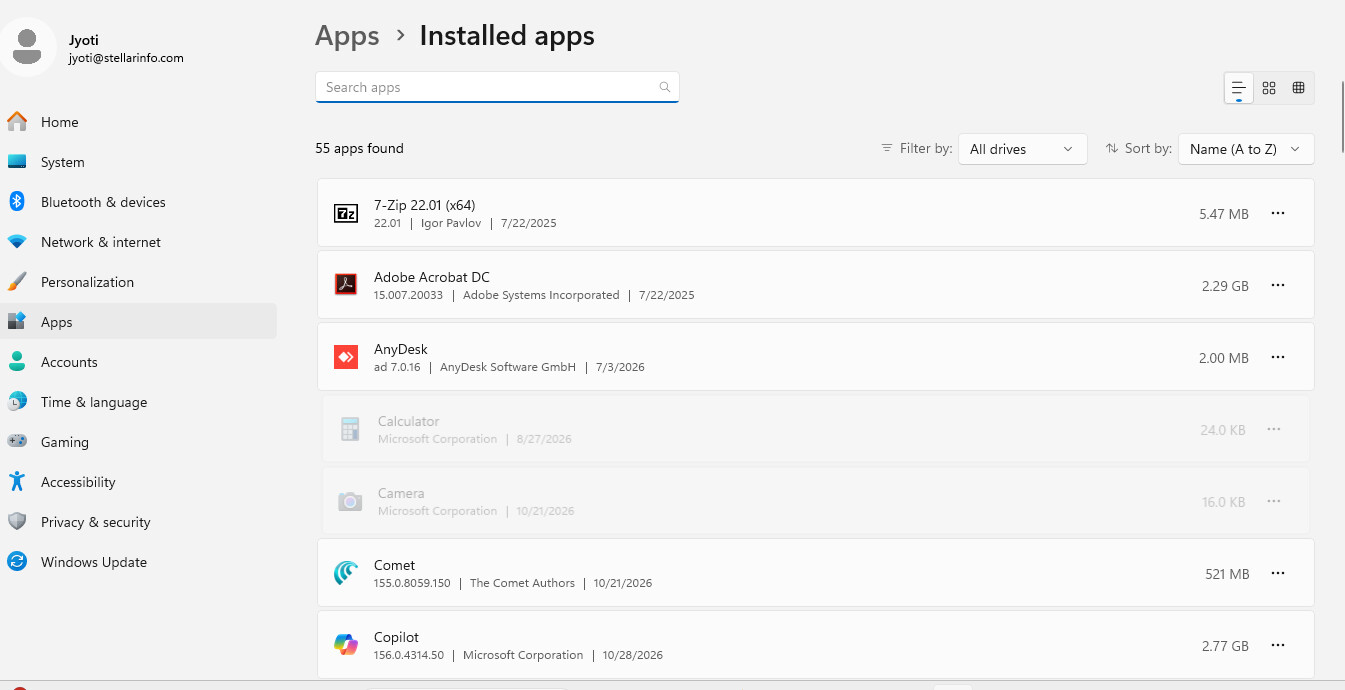
- Click Modify and choose Quick Repair from the repair options.
- Follow the onscreen instructions to complete the process.
- If the problem persists, you can run Online Repair.
After the repair completes, search for ScanPST again.
How to Repair Corrupted PST File if ScanPST is not Available?
If you’re using New Outlook for Windows, then you should know that ScanPST.exe is not available with it. This is because this latest version does not support PST files in the same way as Classic Outlook and synchronizes data directly from the server (cloud). Also, ScanPST may not be available if Outlook is not installed correctly. In such cases, you need to look for alternative solutions to repair the PST file.
If you’re specifically looking for a free solution, you can consider Stellar Online PST Repair. It allows you to repair corrupted PST files directly through web browser without installing any software. The free version supports PST files of up to 500 MB, while the Premium plan supports files of up to 5 GB. This is a completely safe and secure service as it follows strict data privacy guidelines. The uploaded and repaired PST files are deleted from the servers within 24 hrs.
Here’s how to use this online PST repair service:
- Upload a corrupted PST file through a web browser.

- Scan the file for corruption.
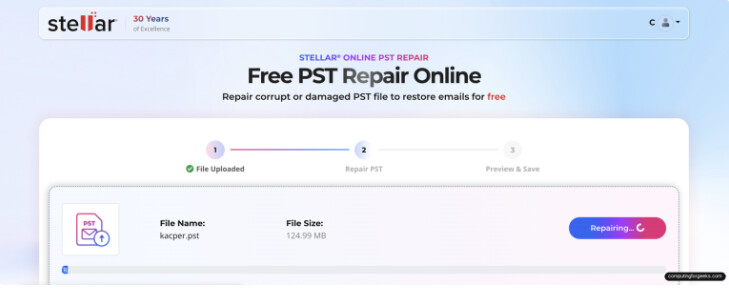
- Preview recoverable mailbox content.
- Download the repaired PST file.
If you want to repair multiple or large PST files, or you want to keep your data file locally, you can download and install Stellar Repair for Outlook. This desktop-based software is specifically designed to repair large, severely corrupted PST files. It restores all the mailbox items, such as emails, contacts, calendars, notes, attachments, to a new PST file. It maintains the folder hierarchy and structure while repairing the file. It allows you to preview the recoverable mailbox items before saving. This PST repair tool also allows you to save the repaired file data in EML, MSG, RTF, HTML, and PDF formats. It can also export the repaired PST file directly to Microsoft 365 (Office 365) or live Exchange Server.
Wrapping Up
ScanPST is a built-in Outlook utility that can repair corrupted PST file. If you’re not able to find this utility, you can check the correct Office installation directory and confirm that you’re using Classic Outlook. If you fail to find the ScanPST, you can consider alternative PST repair solutions. If you have a small PST file (up to 500 MB), you can use Stellar Online PST Repair service to repair the file for free. To repair the PST file without file size limitations, you can consider the desktop-based PST repair tool – Stellar Repair for Outlook.